
Don't make your users prompt engineers
If your AI product needs a good prompt to work, your users are doing the product's job. How we designed Skills for parents at Family Elf, and the checklist I use for any AI feature.

This week's Build Notes is about how to design AI features for non-technical users: one feature, the decision behind it, and the artifact I'd hand any founder.
On Tuesday I wrote about nits vs. needs: the problems that come from a product modeling the work differently from the people doing it. AI products have a classic version of this. The team thinks in prompts. The customer thinks in jobs.
If your AI product needs a good prompt to work, your users are doing the product's job.
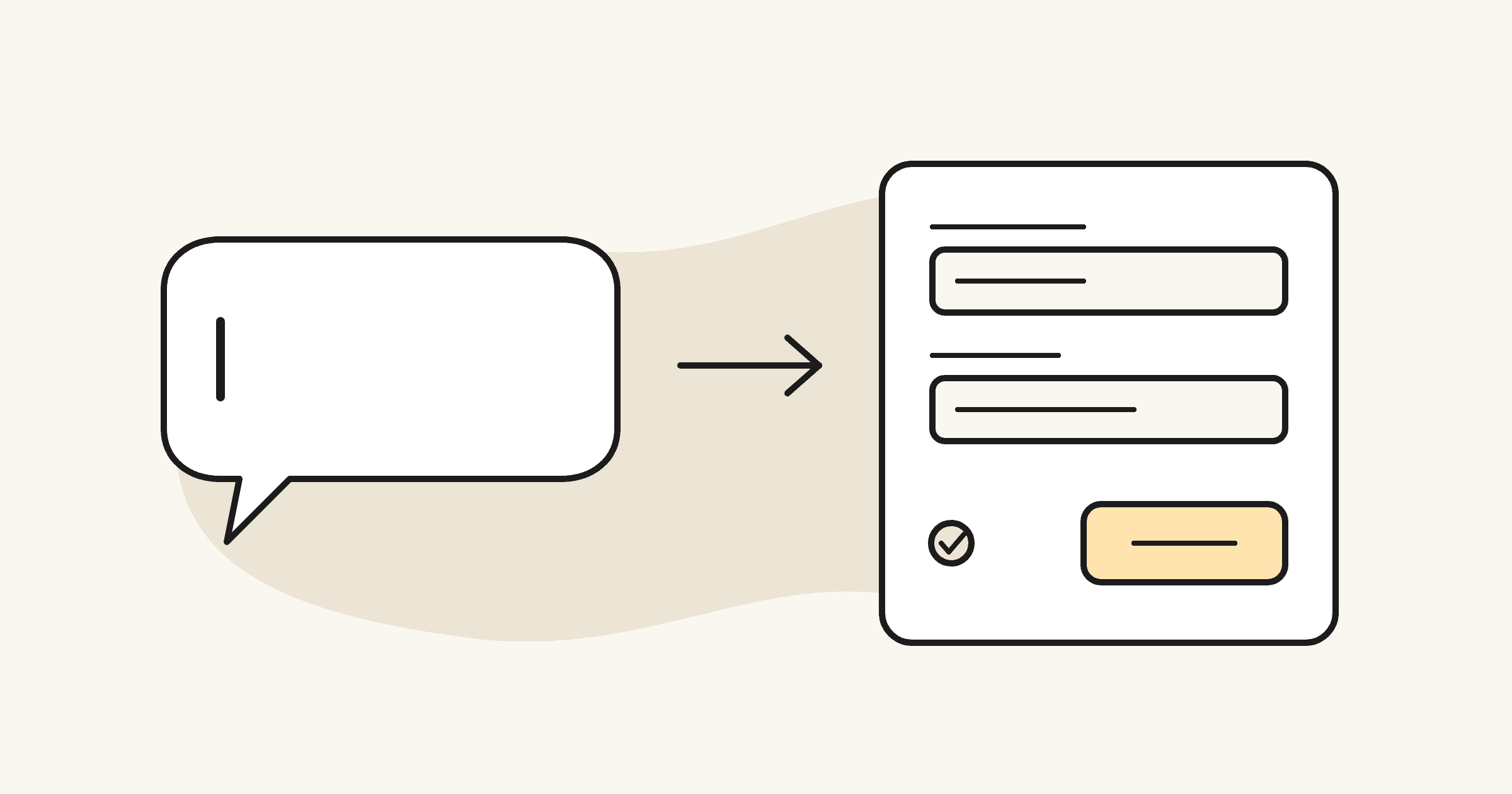
Short answer: To design AI features for non-technical users, package each prompt as a named job, ask for inputs with a short form instead of a blank text box, and return a result in a predictable shape. Put actions with consequences behind buttons, not chat, and decide what users see when the AI can't help.
The situation
Family Elf is a non-profit building a private AI helper for families. A household sets up Elves, AI helpers that each carry a Skill, like meal planning or a feeding log. I joined as product lead to turn a founder-built prototype into a product a small engineering team could ship.
Early on, the product brief had an open question on the Skills page: are Skills pre-built, fully custom, or a hybrid? The answer decides who does the prompt engineering. If Skills are fully custom, every parent is writing system prompts. If they're only pre-built, families can't make the product fit their household.
The decision: a hybrid, with tiers by job
We decided on a hybrid: a library of pre-built Skills, plus simple custom Skills that work like fill-in-the-blank templates. A custom Skill is a short instruction with named blanks; the app turns each blank into a labeled input when a parent uses it. We ruled out a full prompt editor with schemas and output definitions. That would have been more powerful, and a parent would never have opened it.
Then the pre-built Skills split by the kind of job they do, not by the model behind them:
- Do a job once. Fill in a short form, get a structured result. Meal Planning takes your preferences and returns a meal plan and a grocery list. Custom Skills work this way too.
- Keep a record. Feeding Log and Sleep Tracker have a Log Entry button with a form, and an Ask button that summarizes recent activity for one person. If there's no history yet, the Elf says so plainly.
- Remind someone. Reminders are created with a form: once, daily or weekly. The Elf can talk about reminders, but it's told never to say one was scheduled unless the app confirmed it.
- Read the calendar. Calendar Sync answers questions about upcoming events from the family's Google Calendar. If the calendar isn't connected, the Elf says who can connect it and where.
Two guardrails kept the rest simple: one Skill per Elf for the MVP, and a 2,000-character cap on an Elf's instructions, because every character goes to the model with every message.
The unhappy path: when a Skill disappears
A parent can deactivate or delete a custom Skill that an Elf is still using. We decided the Elf shouldn't throw an error. It replies with a fixed, plain message: the assigned Skill is no longer available, and here's where to assign a new one.
In October I ran a UAT pass on it with Claude, against nine acceptance criteria: five passed, none failed, and four couldn't be reached from a family account because pre-built Skills are locked for households. It also found a gap: after a Skill was deleted, the Elf's profile still showed it as assigned, with no warning. The message sent parents to the profile, and the profile didn't show the problem.
The artifact: five questions for every AI feature
Here's the checklist I use, genericized:
- What's the job, in the user's words? Name the feature after the job ("Meal Planning"), not the technique.
- What does the user give it? A short form with labeled fields beats a blank prompt box.
- What comes back, in what shape? A list, a summary, an entry. Predictable output builds trust.
- What is the AI not allowed to claim? Anything with consequences (scheduling, sending, paying) is confirmed by the app, not the model.
- What does the user see when it can't help? No connection, no data, no Skill: each gets a plain message that says what to do next.
What I'd tell a founder
- Write the prompt once, so your users never have to. Your prompt engineering is product work. Ship it inside the feature.
- Use forms for inputs and buttons for actions. Chat is great for questions. It's a bad place to confirm that a reminder exists.
- Design the "can't help" states before launch. They're where non-technical users decide whether to trust the product.
Frequently asked questions
How do you make AI features easy for non-technical users?
Package each prompt as a named job, collect inputs with a short form, and return results in a consistent format. Users should never need to know how the prompt is written.
Should users be able to write their own prompts?
Give them a simple template with named blanks rather than a blank system prompt. It keeps custom features flexible without turning users into prompt engineers.
What should an AI feature do when it can't complete a request?
Show a plain message that says what happened and what to do next, such as connecting a calendar or assigning a new Skill, instead of an error or a made-up answer.
The takeaway
Prompts are product work. Package them as jobs your users recognize, and save the chat box for questions.
Building an AI feature for people who don't think in prompts? Book a 30-minute call below and we'll map your features to jobs.